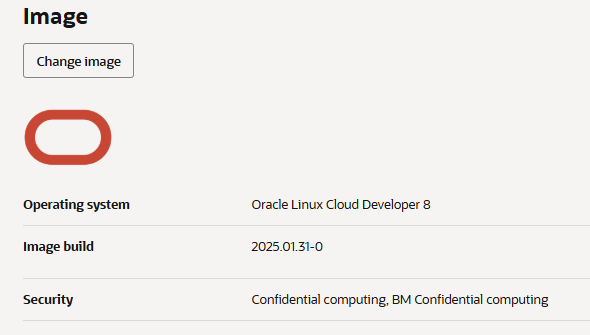
In case you’ve ever launched, for example, an Oracle Linux Cloud Developer 8 image on OCI you have probably noticed that “dnf update” immediately fails with the following message.

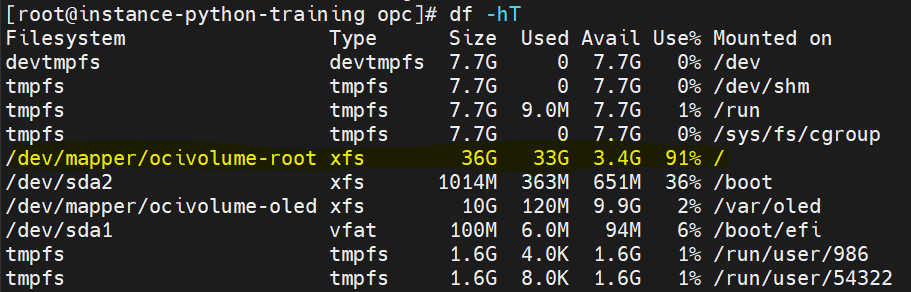
That is because the image was created a while ago and comes out of the box with a small storage footprint. That’s an easy issue to resolve so let’s go to the bottom of it together in this guide. This guide applies to any image.
Thankfully the image author uses lvm concepts so we can easily extend the root filesystem. Please see about configuring and managing logical volumes here as your comprehension of it is a prerequisite to this article.
To do that, make sure that during VM creation you increase the size of the boot volume, or add another block volume, both of these alternatives work as we combine disk together later on.
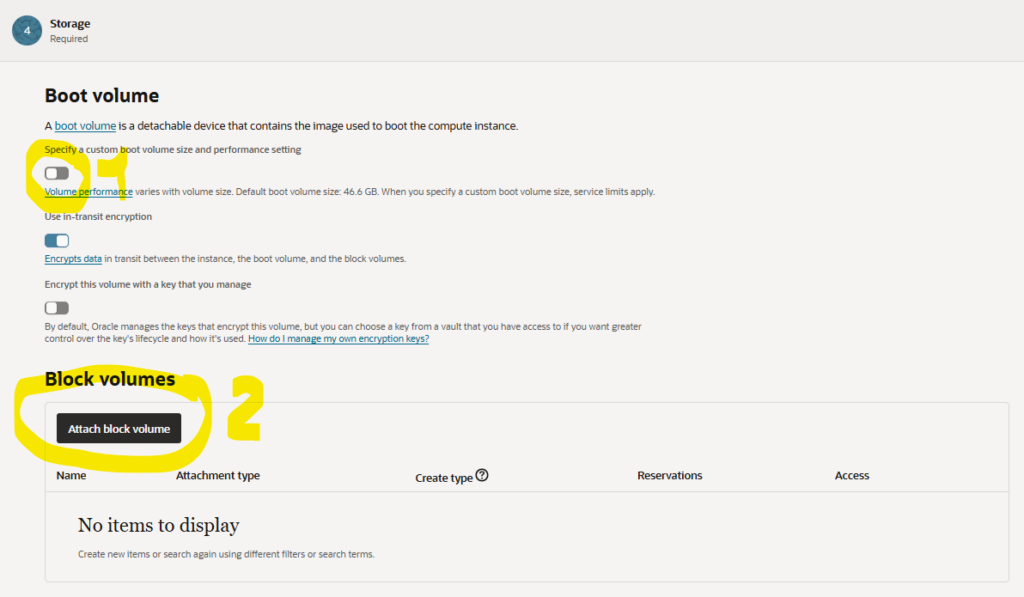
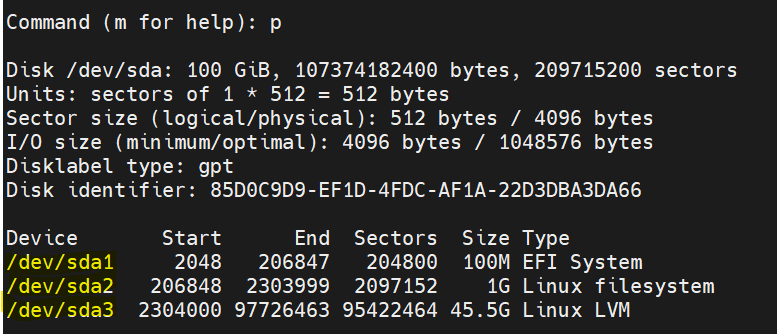
In my example I go for option 1. and increase boot volume to 100GB. We see device /dev/sda with 100G but it looks like only 46.6G is in use (You aggregate partitions dev/sda1, dev/sda2, dev/sda3).
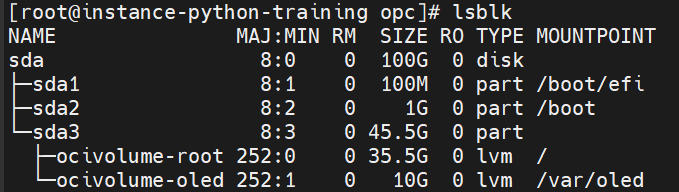
First step – Let’s create another partition
fdisk /dev/sdaPrint the partition table from the fdisk CLI utility with ‘p’ you shall see the 3 partitions already
Now hit ‘n’ to add a new one, press enter to select defaults and it creates an addition partition from the end of sda3 all the way to end of the disk.
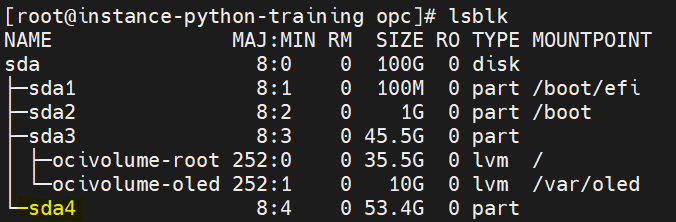
Second step is to create a a PV, then modify the VG and the LV. It is always the same pattern and becomes easy after some practice.

now please type in
[root@instance-python-training opc]# pvcreate /dev/sda4
  Physical volume "/dev/sda4" successfully created.
It gives you

We now have to assigns these PVs to VGs (Volume group), there is only one of it, ocivolume, so this is easy!

now please type in
[root@instance-python-training opc]# vgextend ocivolume /dev/sda4
  Volume group "ocivolume" successfully extended
It gives you the below, #PV increments to two, total size is up as well.

Check the LVs now

Let’s make the second LV bigger, if you notice the root LV draws from the VG ocivolume, so please type in
[root@instance-python-training opc]# lvextend -l +100%FREE /dev/mapper/ocivolume-root
  Size of logical volume ocivolume/root changed from 35.50 GiB (9088 extents) to <88.90 GiB (22758 extents).
  Logical volume ocivolume/root successfully resized.
The result gives you the following

Third and last step, extend the file system. The OS needs to ‘map’ this extended storage space made available, you can do so with the command
[root@instance-python-training opc]# xfs_growfs /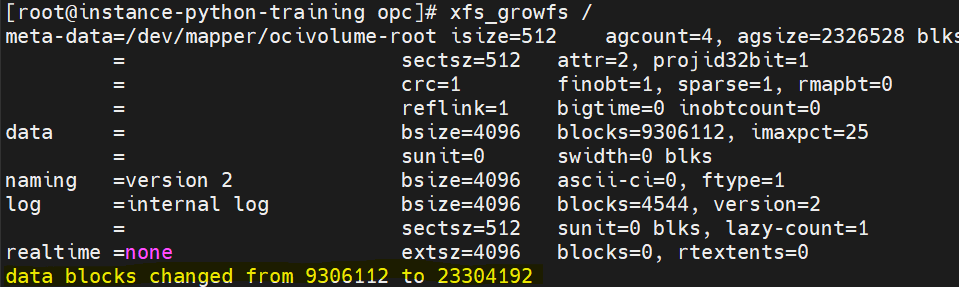
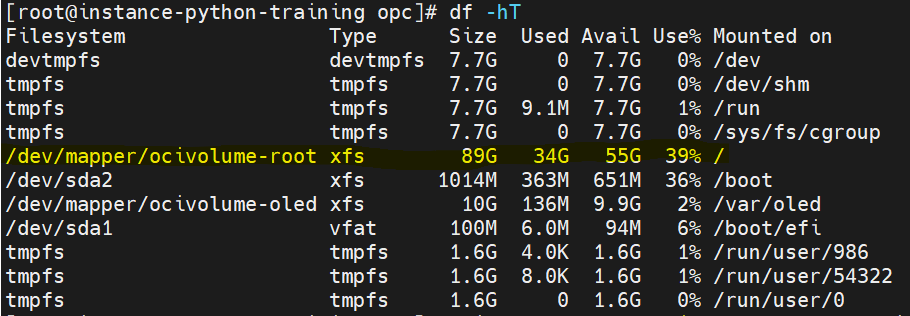
That’s it. We are done now, the / file system stands much larger and we can proceed with updates and whatever installs we have to.
If you are interested, I would recommend to have a look at the different type of filesystems and their pro and cons here. Also, note that it is usually easy to extend a filesystem but it is not trivial when it comes to shrinking one. In general, always make use of logical volumes concepts to be able to allow for flexibility when it comes to storage.
See you later!