VPN is a hot topic with remarks ongoing about our privacy. Luckily we have several tools at our disposal to respond with, and VPN is one of them, but only one amongst many. It will make your traffic appear from a different location and IP, which is a huge plus. It does it by encrypting entirely your internet data between your physical location and the physical location of your VPN server, and it is the core of the issue for some.

You can visualise it as a ‘tunnel’ – you are visible at the entrance or when you exit but not in between.
FOREWORD: VPN by itself will not guarantee your complete anonymity (if such thing even exist when using digital devices) do not think that just because you have a VPN you are protected from identification, your device leaks information in many other ways, but this is off topic here, yet VPN remain a useful tool to protect against local threats such as an ISP or a local router.
One question you would ask (I certainly did) is about the little lock next to the URL bar in our browsers. Does it not encrypt traffic the same way a VPN would? The answer is no! You see that little lock is referred to as HTTPS, and it only encrypt the ‘payload’ e.g. a page, a message, a credit card number but does not encrypt the destination and source of that said ‘payload’. Long story short HTTPS is only partial encryption (and this holds true also to most other protocols) and the VPN is ‘complete’, as it does encrypt the destination and the source in addition to the payload.
Log into the cloud/hosting supplier of your liking and get an OpenVPN images from the internet. Typically your supplier may also have images ready to go on its marketplace, like so:
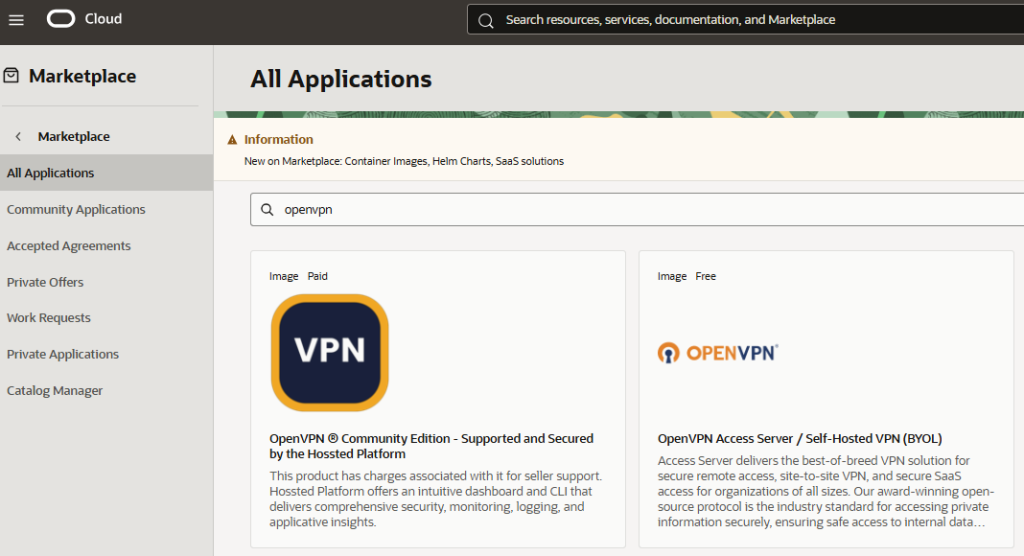
Which turns out to be a VM to be deployed the usual way. Of course, and maybe the most critical steps of all here, choose the region of deployment wisely. OpenVPN instructions are available here.
Now set up the security list or network security group to allow: (Adjust Source IP as required, tcp/22 and tcp/943 are used for admin purposes. If you use your VPN server from multiple devices you may want to leave it as 0.0.0.0/0 on TCP/443 and UDP/1194.. otherwise tighten it up)
| Direction | Source Type | Source | Protocol | Source Port | Destination Port |
|---|---|---|---|---|---|
| Ingress | CIDR | your ip | TCP | All | 943 |
| Ingress | CIDR | your ip | TCP | All | 22 |
| Ingress | CIDR | 0.0.0.0/0 | TCP | All | 443 |
| Ingress | CIDR | 0.0.0.0/0 | UDP | All | 1194 |
SSH to your machine with user ‘openvpnas’. You are welcomed immediately at log on by a CLI message of the day and a CLI guided activity to sets-up the OpenVPN server, it’s all done in 30 seconds max.
We are now ready to go, go back to your browser, log into with the ids you have entered / been given at previous step.
Then,
1) If you plan to use a domain go to ‘VPN Server’ on the left, then change the ‘server address’ from its IP address to its FQDN.
2) Create a new admin user, set a strong password, turn MFA on immediately. Log out and back with the new user and delete the initial admin user.
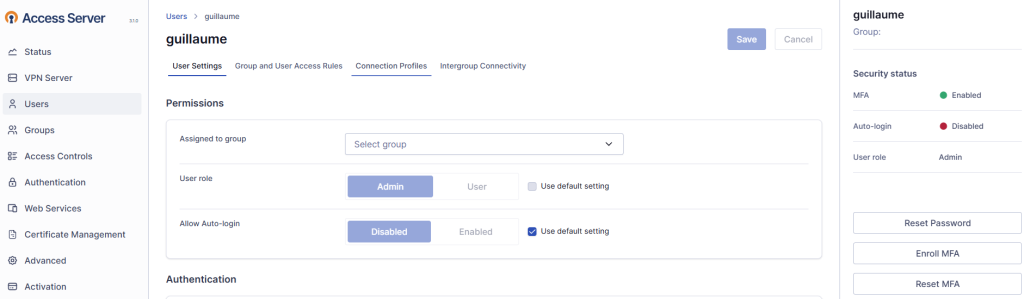
The VPN server is ready to go! Navigate to your user again and select the tab ‘Connection profiles’

The blue button generates .ovpn files.. You import them on clients e.g. Phone, VMs, laptops and OS to connect. The guide for each OS is available here.
For instance in an Android Phone I download the OpenVPN client and import the profile, which gives me the following result:
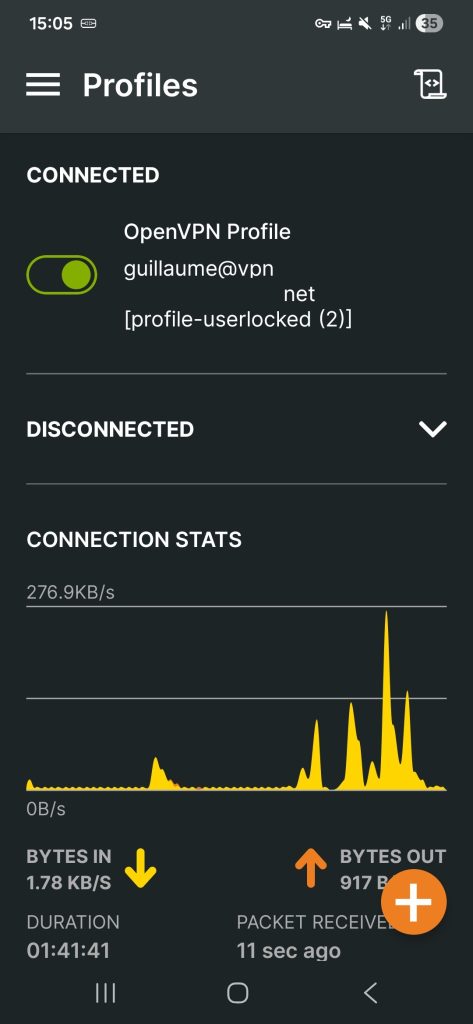
On Linux I set-up OpenVPN the same way, I download the client with dnf install openvpn, and then openvpn –config myfile.ovpn to launch the connection.
You can easily make this connection automatic at launch by reading the instructions available on the following file.
less /usr/share/doc/openvpn/README.systemdWe have just setup in a VPN server anywhere in the world using any cloud or hosting provider, which depending on circumstances can be a plus vis-a-vis local entities. In addition this may hold several upsides compared to using a ready to go or subscription only commercial VPN provider, you are for instance in better control of the traffic log generated by the VM VPN server, but is more involved in terms of management.
Feedback is welcome.